
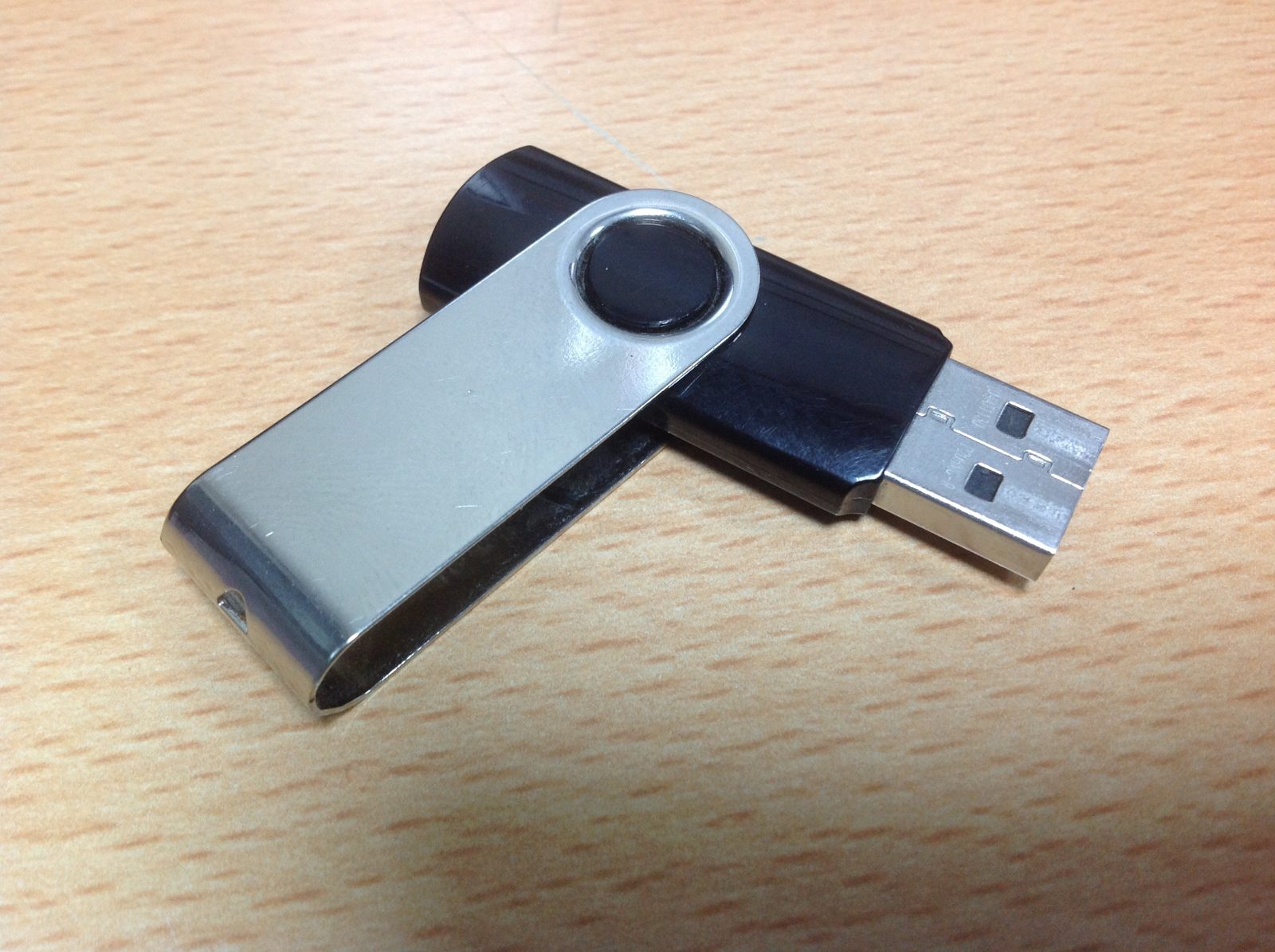
External drives and USB sticks are the devices we trust with our most portable data. They carry backups, photo collections, work files, and entire music libraries, yet they live much harder lives than internal drives. They get dropped, unplugged without warning, left in hot cars, and connected to many different computers. A diagnostic utility called hddscan can check these devices just as it checks internal drives, and testing them occasionally is one of the simplest ways to protect data that travels.
The first thing to understand is that an external drive is really two things: a storage device and an enclosure or adapter that connects it to your computer. Problems can come from either part. A failing cable, a worn connector, or an underpowered USB port can all produce symptoms that look like a dying drive. Testing with a different cable and a different port, when possible, helps separate enclosure problems from drive problems before you draw conclusions.
Connecting the Device Properly
For the most reliable results, connect the device directly to the computer rather than through an unpowered hub, and use the shortest good-quality cable you have. Some diagnostic information, particularly detailed SMART data, is only available when the enclosure passes those commands through correctly. Cheaper enclosures sometimes block SMART access entirely, in which case the program may show the drive but report little health data. That limitation belongs to the enclosure, not necessarily to the drive itself.
If SMART data is unavailable, surface tests still work, because they only require reading the drive. A read test across the whole device will still reveal slow and unreadable areas, which is often enough to judge whether the device is trustworthy. The absence of SMART data is a reason to be a little more cautious, but it is not by itself proof that the drive is failing.
Running a Read Test on Portable Storage
Once the device is connected and recognised, the process is the same as for an internal drive. Select the device in hddscan.io, check any SMART data that is available, and then run a read test across its full capacity. USB sticks and small flash drives finish quickly, while large external hard drives can take hours, so it is best to start the test when the device can stay connected undisturbed for a while.
Portable devices are more sensitive to interruption than internal drives. A bump to the cable, a laptop going to sleep, or another program writing to the device during the test can all distort the results or stop the test early. Turning off sleep mode temporarily and avoiding other disk-heavy work during the test gives the cleanest picture of the device’s real condition.
Interpreting Results for Flash Devices
USB sticks and memory cards behave differently from hard drives. They have no moving parts, so mechanical failure is not a concern, but their flash cells wear out with writing, and cheap devices sometimes use lower-quality memory that degrades faster. A flash device that shows slow areas or unreadable blocks is rarely worth continued trust for important data, because flash failures can progress quickly once they begin.
It is also worth noting that very cheap USB sticks sometimes report a larger capacity than they actually contain, a trick that causes data loss once the real capacity is exceeded. A full read test that covers the entire reported capacity will expose this, because reading beyond the real memory fails or returns garbage. If a bargain device fails such a test, it should be discarded rather than used for anything important.
External Hard Drives and Their Weak Points
External hard drives add mechanical vulnerability to the picture. The drive inside is essentially a laptop hard drive, and it is far more exposed to shocks than the same drive mounted inside a computer. A single drop while the drive is spinning can damage the surface or the read heads. If a drive has been dropped, a surface test is the right response, even if it still seems to work normally, because damage may only affect areas that have not been read since the fall.
Power supply is another common weak point. Some external drives need more power than a single USB port provides, especially when spinning up, and an inadequate supply causes intermittent disconnections that look like drive faults. If a drive repeatedly disconnects during testing, try a powered hub or a Y-cable before concluding that the drive itself is at fault.
A Sensible Routine for Portable Drives
Because portable drives are easy to replace and often hold irreplaceable data, a cautious approach pays off. Test a new device fully before trusting it with important files, retest devices that have been dropped or exposed to heat, and retest backup drives at least a few times a year. Any device that develops unreadable areas should be retired from important duties immediately, even if it still works most of the time.
Safe Removal Protects Your Data
One of the simplest ways to protect portable storage is also one of the most ignored: always eject a device safely before unplugging it. When a computer writes to a drive, some data may sit temporarily in a write cache before being committed to the device, and pulling the plug during that window can corrupt files or even damage the file system. The safe removal option tells the operating system to flush all pending writes and release the device cleanly. It takes only a few seconds, and it prevents a whole category of corruption that no diagnostic tool can undo after the fact. For drives that are written to frequently, this small habit matters as much as any test.
Portable storage is convenient precisely because it moves with you, but that mobility is also what puts it at risk. A few minutes of testing now and then is a small habit that keeps that convenience from turning into a nasty surprise when a backup you counted on turns out to be unreadable.
